


Benefits of Integrating
Anywhere, anytime access without software licenses
Case files, orders, and messages are available through any web browser, on any workstation, laptop, or even directly from an intraoral scanner. There's no need to install software or manage licenses to use it.

Equipment and software integration
DS Core connects directly to Dentsply Sirona's intraoral scanners, digital X-ray, milling, and printing equipment, plus software like inLab CAD/CAM, Sidexis, and CEREC. That means design files can be opened and managed without switching between separate systems, and it also unlocks technical support options through DS Core Care.
Disclaimer
DS Core is not a medical device software. It is not intended to diagnose, treat, cure, or prevent any disease or health condition. Use only for information, education or sharing purposes.
Centralised patient media and case collaboration
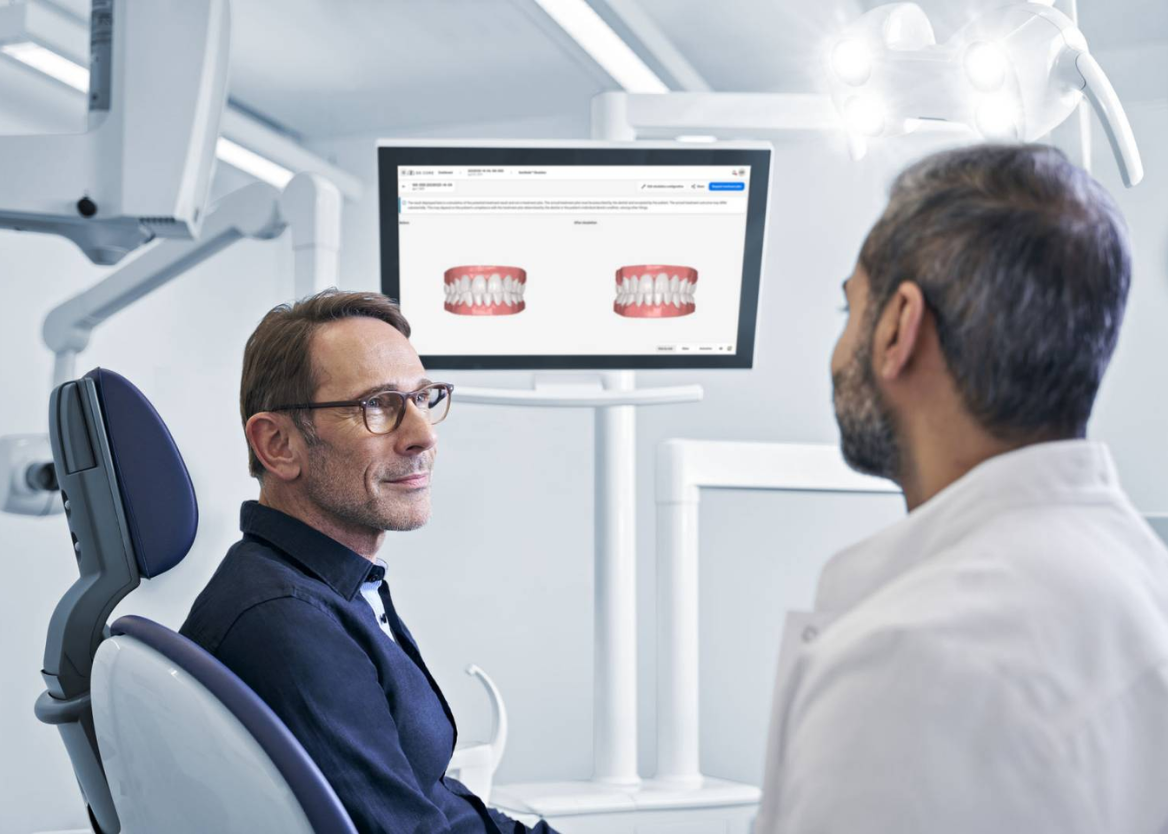
X-rays, intraoral scans, and other patient records are stored securely in one place. Practices can share files and collaborate directly with labs, specialists, and referrers, which cuts down on the back-and-forth of managing files across different systems.

Streamlined ordering and communication
Orders, messages, approvals, and digital case files all live in a single location. This gives practices one workflow for managing lab relationships rather than juggling emails, phone calls, and separate portals, and it also opens the door to other Dentsply Sirona services like SureSmile and DS Core Create.

Getting Started is Easy
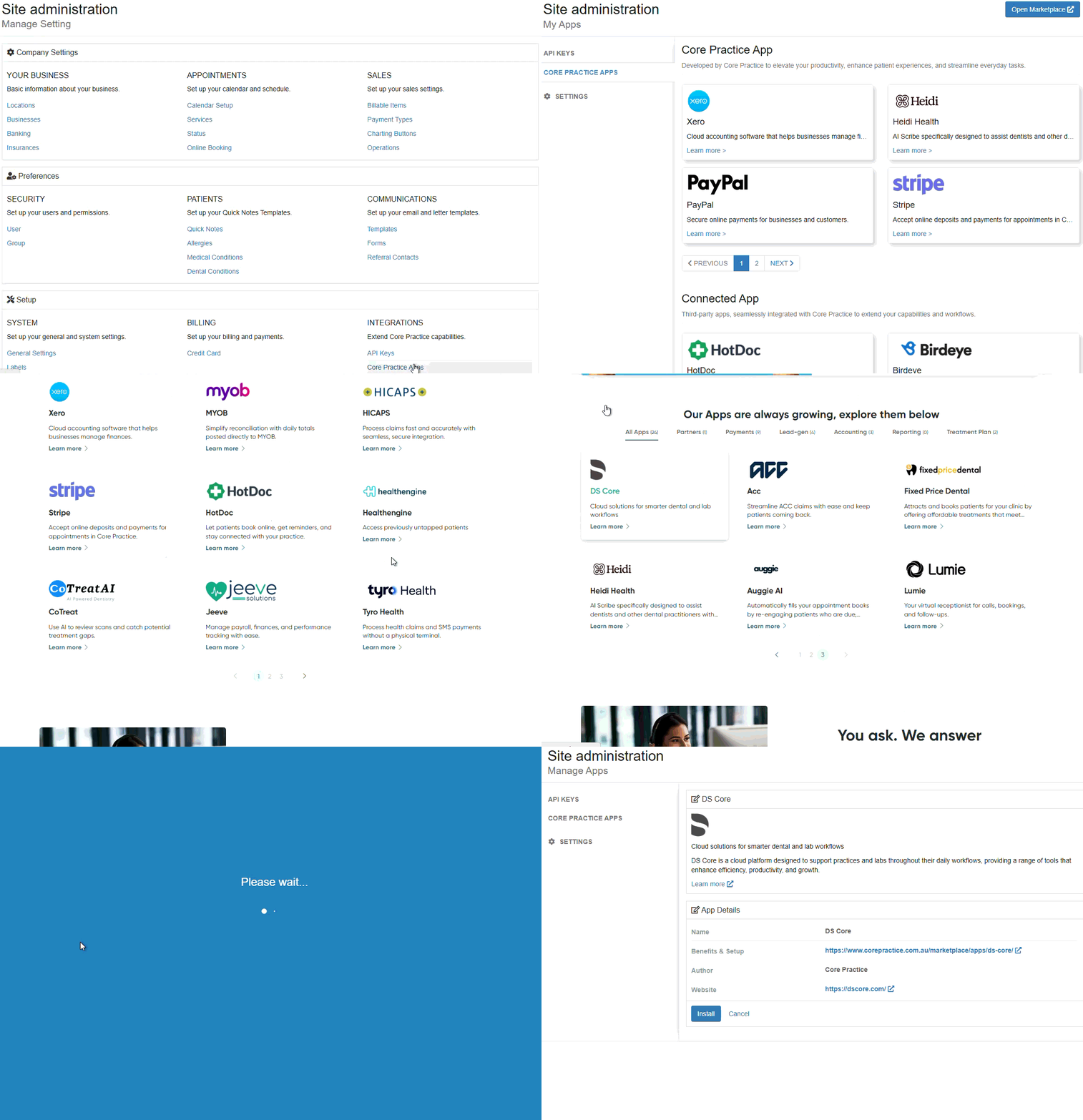
Open the DS Core integration from the Core Practice Marketplace and click Install.
This adds DS Core to Core Practice, but the setup is not complete yet. Continue to Step 2 to connect your DS Core Account.

After installing the integration, follow the prompts to sign in to your DS Core account.
Review the requested permissions and autorise the connection between DS Core and Core Practice. Once your account is connected, you can begin using the integration.
For complete setup instructions, visit our Help Centre article: How to Integrate DS Core in Core Practice – Core Practice
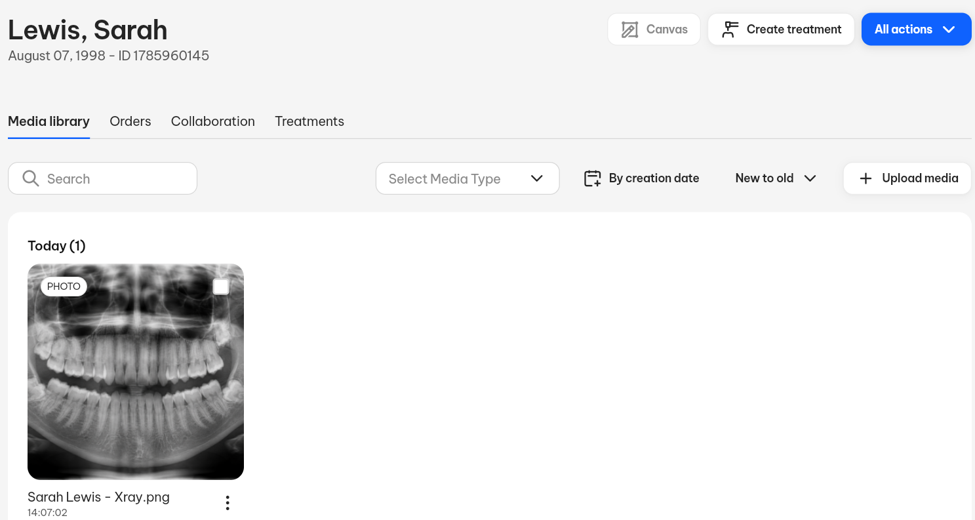
Images available in the patient’s Sidexis 4 profile are automatically sync to their DS Core Profile.
For detailed instructions, watch our video: How to Use DS Core in Core Practice – Core Practice
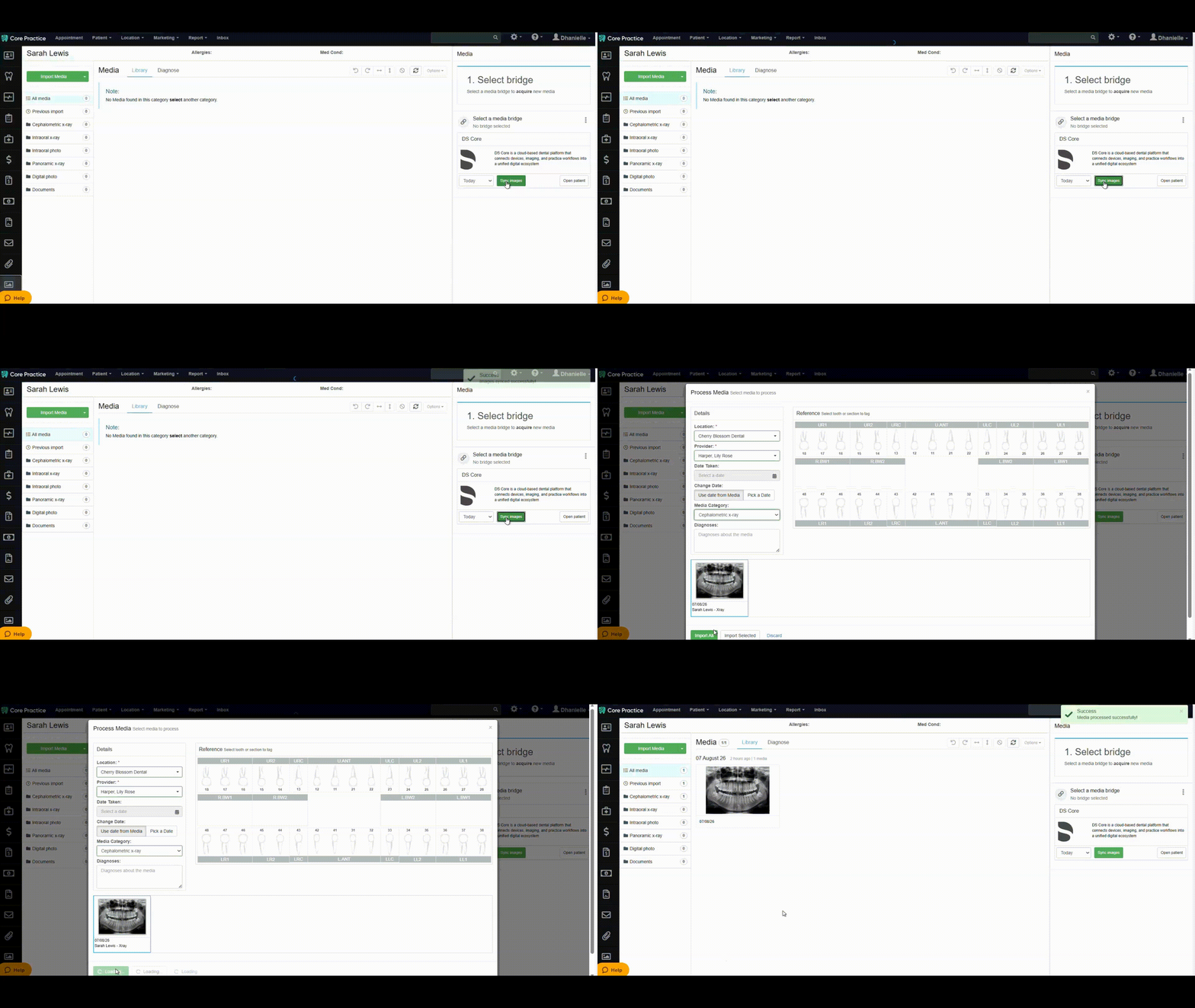
Open the patient profile in Core Practice and go to the Media tab.
In the DS Core section, click Sync images. The patient’s available DS Core images will be added to their media record in Core Practice.
Why choose Core Practice
22+
Convenient & Seamless Integrations
17K+
Users on Core Practice
6K+
Trusted practitioners
6M+
Patients served
A simpler way to manage your dental practice
Try our dental software with full features. Request your demo now